How to connect Logitech wireless mouse models with Bluetooth or a USB receiver
Quick answer
To connect Logitech wireless mouse models, first confirm how that exact mouse is designed to connect: Bluetooth, Logi Bolt, Logitech Unifying, or a model-specific USB receiver. Bluetooth models pair through the Bluetooth settings on your computer or tablet after the mouse is placed in pairing mode. Receiver-based models often work as soon as the receiver is plugged in, but a replacement receiver must match the mouse’s wireless technology. Logitech support documentation treats Bluetooth and USB receiver pairing as separate setup paths, and Logitech also states that Logi Bolt and Unifying devices are not interchangeable. For more practical device setup coverage, see our wireless connectivity section.
Before you connect, identify the wireless system
The most common setup mistake is assuming that any Logitech receiver will work with any Logitech mouse. It will not. Logitech has used several wireless systems across productivity, office, travel, and gaming mice. Before installing software or changing system settings, turn the mouse over and check for a connection logo, an Easy-Switch button, a Bluetooth symbol, or the model name.
| Connection type | How to recognize it | What it means for setup |
|---|---|---|
| Bluetooth | Bluetooth mark, Easy-Switch channel button, or no included receiver on some models | Pair from Windows, macOS, ChromeOS, iPadOS, or Android Bluetooth settings. |
| Logi Bolt | Logi Bolt logo on the mouse, receiver, box, or product page | Use Bluetooth or a Logi Bolt receiver. It does not pair with a Unifying receiver. |
| Logitech Unifying | Orange Unifying star logo on the receiver or compatible device | Use a Unifying receiver and compatible Logitech software to add or remove devices. |
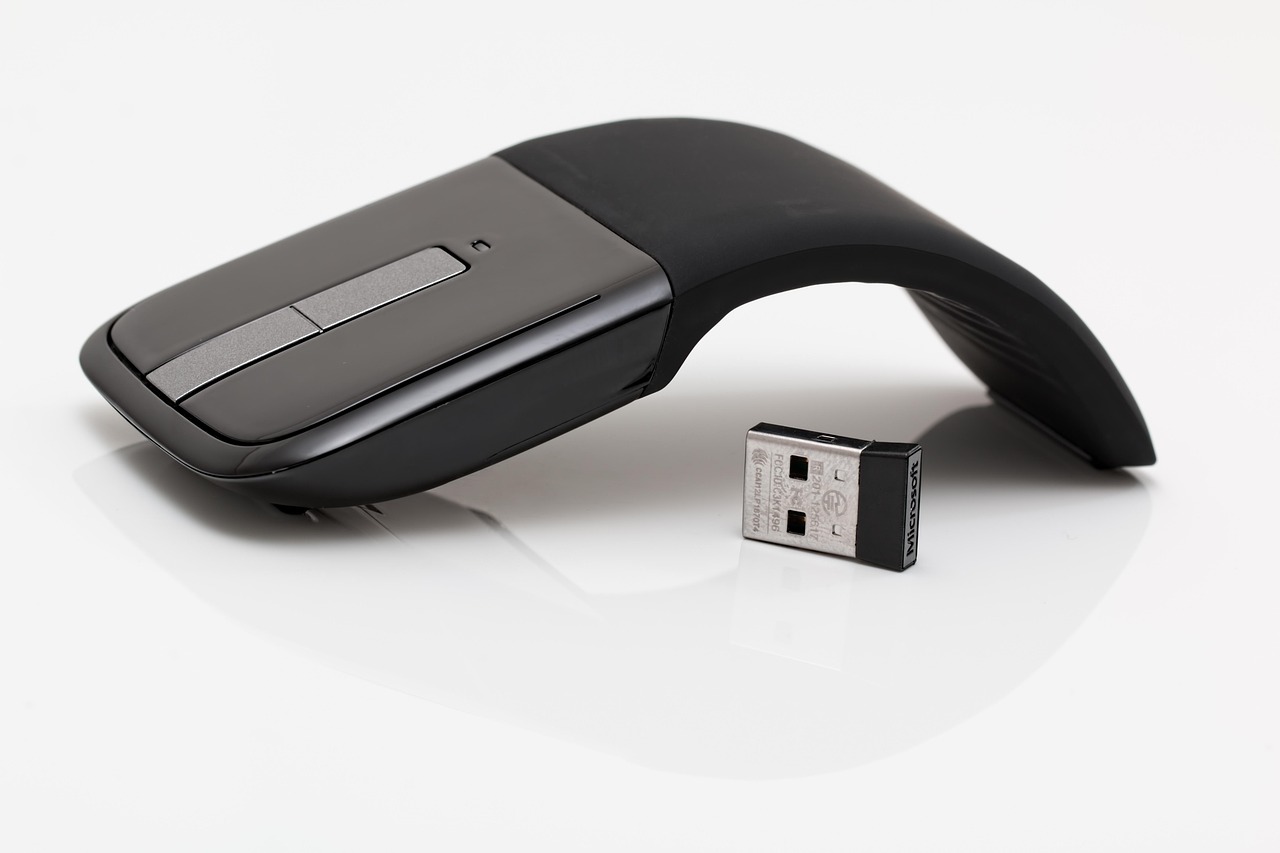
| Model-specific 2.4 GHz receiver | No Bolt or Unifying logo; receiver often shipped pre-paired with the mouse | Often plug-and-play, but replacement options depend on the exact model. |
| Logitech G or LIGHTSPEED receiver | Gaming model branding, G logo, or LIGHTSPEED receiver | Follow the product-specific Logitech G setup path rather than Bolt or Unifying instructions. |
Logitech describes Logi Bolt as based on Bluetooth Low Energy wireless technology, while Unifying is Logitech proprietary 2.4 GHz technology. In practical terms, a Bolt mouse needs Bolt or Bluetooth, and a Unifying mouse needs Unifying or Bluetooth if that particular mouse also supports Bluetooth.
How to connect with Bluetooth
Bluetooth is useful when a laptop has few USB ports, when you are using a tablet, or when the same mouse needs to move between several devices. It can also be the simplest option if a receiver has been lost and the mouse supports Bluetooth. Not every Logitech wireless mouse does, so check the model before starting.
- Turn on the mouse. Check the power switch and make sure the battery is charged or the replaceable battery is installed correctly.
- Select a channel if the mouse has Easy-Switch. Many Logitech multi-device mice have numbered channels such as 1, 2, and 3.
- Enter pairing mode. Hold the Connect or Easy-Switch button until the status light blinks quickly. Logitech support materials describe rapid blinking as the sign that the device is ready to pair.
- Open Bluetooth settings on your device. On Windows, go to Bluetooth settings and add a Bluetooth device. On macOS, open Bluetooth settings and choose the mouse from the device list.
- Select the Logitech mouse name. Follow any on-screen prompts. If the device name appears more than once, choose the entry that matches the model name rather than a generic mouse label.
- Wait for setup to finish. Logitech notes that Windows can take several minutes to download and enable drivers on some systems, so do not assume pairing has failed immediately.
Once paired, operating systems normally remember the mouse and reconnect when the mouse is powered on and within range. Apple’s Mac user guide describes this remembered connection behavior for Bluetooth accessories, and Microsoft’s Windows support guidance similarly explains that paired Bluetooth devices reconnect when Bluetooth is enabled and both devices are in range.
How to connect with a USB receiver
A USB receiver is often the preferred connection for a desktop, office dock, or fixed laptop workstation. It avoids dependence on the operating system Bluetooth stack and can reduce pairing friction in managed business environments. The correct process depends on whether the receiver is original, replacement, Bolt, Unifying, or model-specific.
If the receiver came with the mouse
- Plug the receiver directly into a USB port on the computer. If your computer only has USB-C ports, use a reliable adapter.
- Turn on the mouse and wait a few seconds.
- Move the mouse on a flat, non-reflective surface and confirm that the pointer moves.
- If the pointer does not move, try another USB port before changing software settings.
Many Logitech mice are pre-paired with the receiver in the box. For basic pointer movement, Logi Options+ may not be needed immediately. Software becomes more important when adding a replacement receiver, customizing buttons, checking supported features, or managing several Logitech devices.
If you need to pair through Logi Options+
For supported productivity mice, Logitech’s current customization app is Logi Options+. Logitech describes it as the app for customizing supported mice, keyboards, webcams, and related devices, and support pages point users to it for adding receiver-connected devices. In the app, use the add device flow and choose the receiver type that matches your hardware, such as Logi Bolt or Unifying.
Do not choose a receiver type by trial and error. If the mouse has a Bolt logo, use Bolt. If it has the orange Unifying logo, use Unifying. If neither logo is present, check the exact model page before buying a replacement receiver.
If the receiver is lost or replaced
A lost receiver is not always solved by buying a similar-looking dongle. Unifying receivers can pair with compatible Unifying mice and keyboards, and Logitech says a Unifying receiver can connect up to six compatible devices. Logitech also says a Logi Bolt receiver can connect up to six compatible Logi Bolt keyboards and mice. Model-specific receivers may not offer the same flexibility.
If the mouse supports Bluetooth, pairing without a receiver may be the easiest workaround. If it does not support Bluetooth, identify the model number and receiver type before purchasing anything. A physically similar Logitech receiver can still be incompatible.
Bluetooth or receiver, which should you choose?
There is no single best option because the right connection depends on the device, workplace, and available ports. Bluetooth saves a USB port and is convenient for travel. A USB receiver is usually better when you want a dedicated link, use a desktop without reliable Bluetooth, or need the mouse to work before signing in to an operating system account.
| Situation | Recommended connection | Reason |
|---|---|---|
| Thin laptop with limited ports | Bluetooth | Keeps USB-C or USB-A ports free for storage, charging, or displays. |
| Desktop workstation | USB receiver | Stable, simple, and not dependent on built-in Bluetooth quality. |
| Shared desk or hot desk | Receiver or Bluetooth, depending on policy | A receiver is predictable, but Bluetooth avoids leaving hardware behind. |
| Multi-device workflow | Bluetooth plus Easy-Switch, or receiver on one channel | Many Logitech mice can switch among stored channels. |
| Lost receiver | Bluetooth if supported; matched replacement if not | Compatibility matters more than brand name alone. |
For travel mice and tablets, Bluetooth is often convenient. For dense office environments, a properly matched receiver can be easier to support. For gaming-oriented Logitech mice, use the setup path specified for that model, because gaming receivers and software may differ from the productivity mouse ecosystem.
Troubleshooting when the mouse will not connect
Connection failures usually come from one of four areas: power, pairing mode, receiver compatibility, or host computer settings. Work through the simple checks first. Reinstalling software before confirming the receiver type often wastes time. See also: device architecture.
| Problem | Likely cause | What to try |
|---|---|---|
| Mouse does not appear in Bluetooth list | It is not in pairing mode, Bluetooth is off, or the mouse does not support Bluetooth | Hold the pairing button until the light blinks quickly, turn Bluetooth off and on, and confirm model support. |
| Mouse pairs but pointer does not move | Driver setup is unfinished, battery is low, surface tracking is poor, or the mouse is connected to another channel | Wait a few minutes on Windows, charge or replace the battery, test on paper or a mouse pad, and check the Easy-Switch channel. |
| USB receiver is not detected | USB port, hub, adapter, or receiver issue | Plug directly into the computer, try another USB port, check Device Manager on Windows, and test the receiver on another computer. |
| Logi Options+ cannot find the mouse | Unsupported model, wrong receiver family, or existing pairing conflict | Confirm whether the mouse is Bolt, Unifying, Bluetooth, or model-specific, then remove and re-add the device if supported. |
| Cursor lags or disconnects | Distance, interference, weak battery, or poor receiver placement | Move the receiver closer, avoid crowded hubs, replace or charge the battery, and keep the mouse within normal operating range. |
Logitech support recommends isolating USB receiver problems by trying a direct computer port, a different port, and another computer. That sequence helps separate a computer-side issue from a receiver or mouse issue. For Bluetooth problems, removing the old pairing record and pairing again on the correct Easy-Switch channel is often more effective than repeatedly selecting the same stale device entry.
Also remember that a charging cable is not always a data connection for mouse control. Some rechargeable wireless mice continue to operate wirelessly while charging. Check the product documentation before assuming that plugging in the cable should create a wired mouse connection.
Using Easy-Switch and multiple devices
Many Logitech productivity mice support multiple stored connections. A common setup is channel 1 for a work laptop with a receiver, channel 2 for a personal laptop over Bluetooth, and channel 3 for a tablet. To add another device, switch to an unused channel, hold the channel or Connect button until the light blinks quickly, then pair from the second device.
The key point is that each channel stores a separate pairing. If your mouse keeps connecting to the wrong computer, it may be on the wrong Easy-Switch channel rather than failing to pair. If you are repurposing a second-hand mouse, clear or overwrite the previous connection by placing the chosen channel into pairing mode and pairing it with your own device.
Logitech’s Unifying and Logi Bolt ecosystems can each support up to six compatible keyboards and mice on a single matching receiver, but that does not mean six random Logitech devices. The devices must belong to the matching ecosystem, and the software must support adding them. For offices, that compatibility check can be the difference between a clean shared-desk setup and a drawer full of similar-looking receivers that do not pair.
Frequently asked questions
Can I connect a Logitech wireless mouse without a USB receiver?
Yes, but only if that mouse supports Bluetooth. Put the mouse into pairing mode, open Bluetooth settings on your computer or tablet, and select the mouse. If the model is receiver-only, it needs a compatible receiver.
Can I use any Logitech receiver with my mouse?
No. Logi Bolt and Unifying are different receiver systems, and Logitech states that they cannot pair with each other. Some entry-level receivers are also model-specific. Match the receiver to the mouse logo and model number.
Do I need Logi Options+ to connect the mouse?
Not always. A pre-paired receiver or basic Bluetooth pairing may work without customization software. Logi Options+ is useful for supported devices when adding a receiver, customizing buttons, managing features, or checking device settings.
Why does my Logitech mouse blink but not connect?
A fast blinking light usually means the mouse is ready to pair, but the computer still has to discover it. Check that you are on the correct Easy-Switch channel, remove old pairings, keep the mouse close to the computer, and confirm that the receiver type or Bluetooth path matches the model.
How many devices can one Logitech receiver connect?
For compatible devices, Logitech says both Unifying and Logi Bolt receivers can connect up to six matching keyboards and mice to one computer. This does not apply to every Logitech receiver, so model-specific receivers should be checked separately.