How to choose a wireless Wi-Fi adapter for laptops and desktops
What a wireless Wi-Fi adapter actually does
A wireless Wi-Fi adapter is a compact networking device that lets a laptop, desktop, mini PC, workstation, or media system connect to Wi-Fi when built-in wireless is missing, outdated, or unreliable. The best choice is rarely the model with the largest speed number on the package. It is the adapter that fits the router, operating system, USB or PCIe interface, antenna layout, and the real wireless conditions in the room. In practical terms, Wi-Fi 6 is still enough for many homes and offices, Wi-Fi 6E adds access to 6 GHz networks where supported, and Wi-Fi 7 is the forward-looking option when the router and device platform can use its newer features.
The adapter works as the radio interface between the computer and the wireless router or access point. It manages Wi-Fi bands, modulation, encryption, driver support, and signal reception. If the router, adapter, or operating system does not support the same features, the connection falls back to the highest common mode. That is why compatibility usually matters more than peak speed claims. You can also explore more in wireless connectivity.

For broader background on device networking categories, see the wireless connectivity section.
Start with the Wi-Fi standard, not the speed number
Retail listings often highlight labels such as AC1200, AX1800, AX3000, BE6500, or BE9300. These labels combine theoretical maximum rates across bands. They do not show the speed a single laptop or desktop will necessarily achieve. A clearer way to compare adapters is to start with the Wi-Fi generation.
| Adapter class | Common standard | Main bands | When it makes sense |
|---|---|---|---|
| Wi-Fi 5 | 802.11ac | 5 GHz and often 2.4 GHz | Basic upgrades for older systems where cost is the main concern |
| Wi-Fi 6 | 802.11ax | 2.4 GHz and 5 GHz | Most mainstream homes, offices, and shared networks |
| Wi-Fi 6E | 802.11ax with 6 GHz support | 2.4 GHz, 5 GHz, and 6 GHz | Lower-congestion networks with a 6E router and regional 6 GHz support |
| Wi-Fi 7 | 802.11be | 2.4 GHz, 5 GHz, and 6 GHz where allowed | Newer routers, high-throughput local transfers, low-latency applications, and longer upgrade cycles |
Wi-Fi 6 added efficiency improvements that matter in busy networks, not only higher peak rates. Wi-Fi 6E extended Wi-Fi 6 into the 6 GHz band where regulators allow it, helping reduce congestion from legacy 2.4 GHz and 5 GHz devices. Wi-Fi 7 goes further with features such as wider 320 MHz channels in countries that make 6 GHz available, 4K QAM, and Multi-Link Operation. The Wi-Fi Alliance introduced Wi-Fi CERTIFIED 7 on January 8, 2024, and the IEEE 802.11 working group lists IEEE Std 802.11be as published on July 22, 2025.
The limitation is straightforward: adapter features need matching infrastructure. A Wi-Fi 7 adapter connected to a Wi-Fi 5 router will not deliver Wi-Fi 7 performance. A Wi-Fi 6E adapter cannot use 6 GHz unless the router, operating system, driver, and local rules support it.
Choose the right form factor
The next decision is the physical format. Most wireless adapters fall into three practical categories: compact USB adapters, larger USB adapters with external antennas, and internal PCIe or M.2 cards.
Compact USB adapters
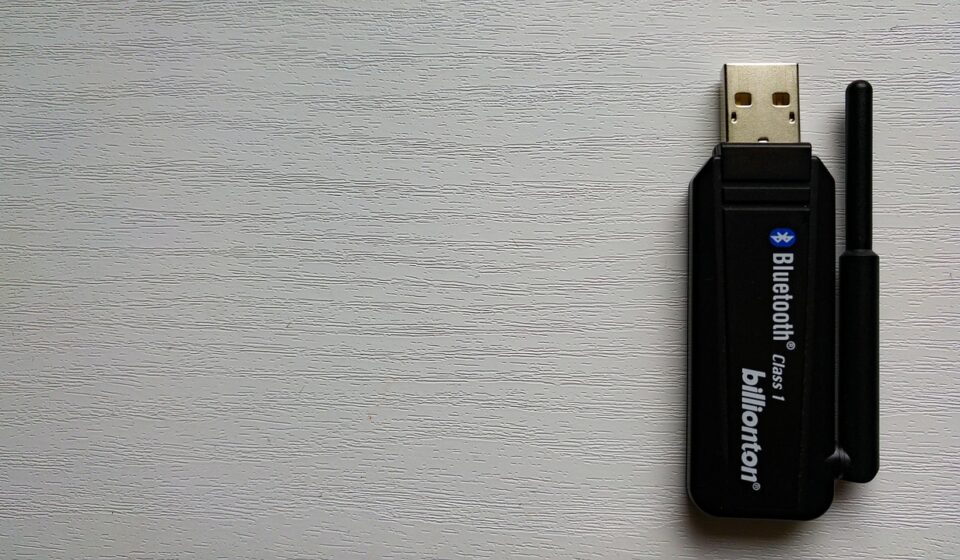
A compact USB adapter is easy to install and convenient for travel. It is usually the simplest way to add Wi-Fi to a desktop or replace unreliable built-in Wi-Fi on a laptop. The trade-off is antenna size. Very small adapters may work well close to the router, but reception can weaken through walls, behind furniture, or at longer range.
USB adapters with external antennas
A larger USB adapter with one or more external antennas can provide better reception because the antenna has more physical space and can be repositioned. A short USB extension cable or desktop cradle can also help by moving the adapter away from a metal PC case, monitor, dock, or wall obstruction. In many installations, placement affects wireless performance as much as the chipset generation.
PCIe and M.2 wireless cards
Internal adapters are usually the cleaner choice for a desktop that needs stable daily connectivity. PCIe Wi-Fi cards often use external antenna leads mounted at the rear of the case. Some also include Bluetooth, which may require a separate internal USB header. M.2 modules are common inside laptops and mini PCs, but replacement requires checking the slot type, antenna connectors, BIOS restrictions, and driver availability.
As a rule of thumb, choose USB if you want easy installation and portability. Choose PCIe if the system is a desktop, the connection will be used every day, and stable antenna placement matters. Choose M.2 only when you are prepared to check hardware compatibility in detail.
Check USB, PCIe, and driver compatibility before buying
The host interface can become a bottleneck. Many older USB Wi-Fi adapters still work through USB 2.0, but USB 2.0 is not a good match for faster Wi-Fi 6, Wi-Fi 6E, or Wi-Fi 7 adapters. USB-IF documentation describes USB 3.2 transfer rates at 5 Gbps, 10 Gbps, and 20 Gbps depending on mode, while USB 2.0 is far lower. In everyday adapter listings, this means a device marketed for high wireless throughput should generally be connected to a USB 3.x port rather than an old USB 2.0 port.
Connector shape alone is not enough. USB-A and USB-C describe connectors, not guaranteed speed. A USB-C port can still have limited capability, and a USB-A port can support high-speed USB 3.x modes if the host controller supports them. When in doubt, check the computer manual, motherboard specifications, or operating system device information.
Driver support is just as important. Windows users should confirm that the adapter supports the exact version in use, especially on older PCs. macOS support is more restrictive because many third-party Wi-Fi chipsets depend on vendor drivers that may not be updated for every macOS release. Linux users should verify kernel support and chipset model, not just the adapter brand, because two adapters with similar names can use different chipsets.
- Confirm the operating system and version before ordering.
- Check whether the adapter needs a downloadable driver or works with built-in system drivers.
- For business or managed environments, verify WPA3, enterprise authentication, and driver deployment requirements.
- For Bluetooth combo cards, check whether Bluetooth needs a separate internal cable or header.
Understand bands, antennas, and real-world range
Wi-Fi performance depends heavily on radio conditions. The 2.4 GHz band usually reaches farther and passes through walls better, but it is crowded and often slower. The 5 GHz band offers more capacity and less interference than 2.4 GHz in many homes and offices, although range can drop more quickly. The 6 GHz band can provide cleaner spectrum for Wi-Fi 6E and Wi-Fi 7, but it still requires compatible routers, clients, and regional approval.
In the United States, the FCC adopted rules in 2020 making 1,200 MHz of spectrum in the 6 GHz band available for unlicensed use, with later rulemaking expanding certain very low power device operations. Other regions have different allocations, so a 6 GHz-capable adapter may not expose the same channels everywhere. This is especially relevant for imported hardware, travel routers, and devices purchased across markets. See also: device architecture.
Antenna design also changes the result. A two-antenna adapter can support 2×2 MIMO when paired with a suitable router and conditions, while single-antenna designs are more limited. External antennas can help with placement and orientation, but they cannot overcome every obstacle. Thick walls, metal desks, USB port noise, microwave ovens, neighboring networks, and poor router placement can all reduce throughput.
For desktops placed under a desk, the biggest improvement may come from moving the antenna into open space. If the adapter is plugged directly behind a metal PC case, the case can block or reflect signals. A USB extension dock or PCIe antenna base positioned above the desk can produce a more stable link without changing the router.
When Wi-Fi 7 is worth it and when it is not
Wi-Fi 7 is useful when the rest of the network is ready. Its headline features are aimed at capacity, latency, and reliability as much as raw speed. Multi-Link Operation can allow compatible devices to use links across bands more flexibly. Wider 320 MHz channels can raise peak throughput in 6 GHz spectrum where such channels are available. 4K QAM can increase transmission efficiency under strong signal conditions.
Those benefits are conditional. A Wi-Fi 7 adapter does not guarantee faster internet if the broadband plan is slower than the old Wi-Fi connection. It may also do little if the computer is far from the router, if 6 GHz channels are unavailable, or if the router does not support the same Wi-Fi 7 features. For many people using a midrange router, Wi-Fi 6 or Wi-Fi 6E remains a sensible upgrade.
Consider Wi-Fi 7 when you already own or plan to buy a Wi-Fi 7 router, transfer large files across a local network, use cloud gaming or low-latency applications, or want a longer upgrade cycle for a desktop. Consider Wi-Fi 6E when you mainly want access to the cleaner 6 GHz band and do not need the newest Wi-Fi 7 platform. Choose Wi-Fi 6 when reliability, cost, and broad compatibility matter more than next-generation features.
A practical buying checklist
Before choosing a wireless Wi-Fi adapter, review the actual network environment instead of relying on a single speed rating.
- Identify the router standard. Match the adapter to the router generation, or choose one generation ahead only if you plan to upgrade the router soon.
- Check the computer interface. Use USB 3.x for high-speed USB adapters, or confirm the PCIe or M.2 slot for internal cards.
- Verify operating system support. Look for the chipset, driver status, and security feature support.
- Consider antenna placement. For desktops, prioritize an antenna base, extension cable, or external antennas.
- Confirm 6 GHz availability. Wi-Fi 6E and Wi-Fi 7 6 GHz operation depends on router support, region, and software.
- Check security requirements. WPA3 support is increasingly important, particularly for newer networks and business environments.
- Ignore unrealistic peak-rate expectations. Advertised combined speeds are not the same as single-device throughput in a real room.
The best match is usually the adapter that removes the current bottleneck. If the issue is an old Wi-Fi 4 or Wi-Fi 5 radio in a desktop, a Wi-Fi 6 USB or PCIe adapter may be enough. If the issue is congestion in an apartment building, Wi-Fi 6E or Wi-Fi 7 with 6 GHz support can be more meaningful. If the issue is poor placement, an adapter with a better antenna position may outperform a newer but tiny plug-in model.
Frequently asked questions
Does a wireless Wi-Fi adapter make internet faster?
It can, but only if the old adapter was the limiting factor. If your broadband plan, router, signal quality, or network congestion is the bottleneck, a new adapter may improve stability more than speed.
Is USB or PCIe better for a desktop PC?
PCIe is often better for a permanent desktop setup because it can use larger external antennas and a direct internal connection. USB is easier to install and move between devices, especially when the adapter includes a cable or dock for better placement.
Do I need Wi-Fi 6E or Wi-Fi 7?
You need Wi-Fi 6E or Wi-Fi 7 only if your router and region support the relevant bands and features. Wi-Fi 6 is still a practical choice for many mainstream networks, while Wi-Fi 7 is better suited to newer routers and performance-focused setups.
Why does my adapter show a lower speed than advertised?
Adapter speed labels often combine theoretical maximum rates across multiple bands. Real performance depends on distance, walls, interference, channel width, router capability, USB or PCIe interface, and the number of supported spatial streams.
Can I use one adapter for both Wi-Fi and Bluetooth?
Some adapters include both Wi-Fi and Bluetooth, but support varies by form factor. PCIe combo cards may require a separate internal USB connection for Bluetooth, so check installation requirements before buying.
Bottom line
A good wireless Wi-Fi adapter should be selected as part of the whole network, not as an isolated accessory. Match the Wi-Fi generation to the router, use the right computer interface, confirm driver support, and pay close attention to antenna placement. Wi-Fi 7 is now a standard-backed upgrade path, but it delivers its strongest value only when the router, bands, channels, and local regulations line up. For many users, a well-supported Wi-Fi 6 or Wi-Fi 6E adapter with good antennas will be the more balanced choice.